


I received a question about document comparison for the Mac by someone who came from a larger law firm where they used DeltaView. And since the topic has come up a couple of times on MILO, I wanted to provide more detail.
Document comparison is very important to lawyers since we’re regularly revising and exchanging drafts with colleagues and co-counsel. The task is not that essential to the rest of the world.
There are a handful of software tools developed for the legal profession to address this need. Many years ago, CompareRite was the tool of choice. Unfortunately, LexisNexis decided to “retire” the software in February 2002, although you will still find committed users of the product.
 Most law firms use DeltaView from WorkShare, which has been re-branded as WorkShare Compare & Professional (although the software continues to assure everyone that it’s “DeltaView powered”). I reviewed DeltaView version 2.7.2 back in 2002 for LLRX.com.
Other document comparison tools on the market for legal professionals include Change-Pro from Litera and compareDocs from DocsCorp. I reviewed compareDocs in 2008 for Legal Assistant Today magazine (PDF version).
These applications provide more capabilities than “Track Changes” built into Microsoft Word. Some people like the fact that the applications are separate from Word, and others are anxious about the potential risks in using the Track Changes functionality.
The main problem, of course, is that everything I’ve mentioned so far is Windows-specific. None of the tools mentioned above run natively on the Mac OS. You can certainly run the tools in a virtual environment through Parallels or VMware Fusion, but if you’re reading this post, you probably want something native to the Mac OS.
The bad news is that there is no direct equivalent for the Mac OS.
The good news is that there are a couple of workarounds.
 First, there are some excellent text comparison applications for the Mac OS, but the emphasis there is on TEXT. Applications such as Kaleidoscope, Araxis Merge, Differences Examiner, and Differencia will compare the plain TEXT of a file, but they cannot compare native Word documents. Most of these applications are designed to compare plain text files used in database or web design but they are not meant to be full-powered Word DOCUMENT comparison tools.
You can use these tools to compare Word documents, but they will first strip out the text before comparison. That means you’re not getting the benefit of comparing any formatting or contextual differences between the documents – you’re just comparing the plain text.
Now for many cases, that might be adequate. But most of the time, lawyers are looking for a comprehensive tool that will take into account the entire document. If you’re just concerned about comparing the text, I would recommend Kaleidoscope or Araxis Merge.
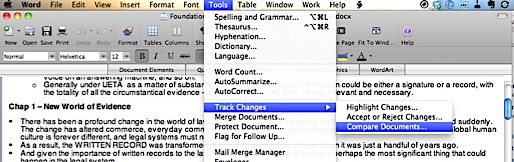
Second, Microsoft Word for Mac already has an acceptable document comparison tool built-in found under Tools > Track Changes > Compare Documents. Once you have a document open in Word, click the menu item, select another document, and you’ll get a third document with all of the changes marked either inline or as comment bubbles on the side.
If you’ve ever used Track Changes in Word before, you’ll be very comfortable with the way the changes appear. The Compare Documents feature marks all of the differences between two documents using Track Changes. The “Merge Documents” menu item is similar, but it actually merges the Track Changes from two or more documents into a single document. For the majority of document comparison needs for Mac-using lawyers, the Compare Document tool in Microsoft Word for Mac will work just fine.
Unfortunately, there is not a counterpart for Pages.
 Third, you may consider using a cloud-based word processor such as Google Docs to “collaborate” on a document. You can upload and share a document via Google Docs which will keep track of all changes made by your collaborators. When the collaboration is done, you can export it out of Google Docs and then finalize the formatting in Microsoft Word or Pages (e.g. intricate bullets/numbering, line numbers, ToC, ToA, etc.).
(Thanks to Randy Singer, the Mac Attorney, for providing a list of Mac-native text comparison tools on MILO.)
Pages *does* have redlining / document comparison. See Edit > Track Changes
Yes, Pages does indeed have a nice Track Changes feature. I should have been more clear in my post above, however – Pages does not have a document COMPARISON tool that is equivalent to the “Compare Documents” feature in Microsoft Word. Track Changes in Pages allows you to highlight the changes you make to a document, but you cannot compare two similar documents side-by-side in Pages.
Amusingly enough, a Google search just delivered me back to my original 5-year-old comment—which now sounds too abrupt! I admit frustration that Pages does not support conventional redlining. I recall using WordPerfect for this years ago while working on law review. I have long disliked Word for its complexity—with all its extraneous features, how odd it falls short here.
Redlining is such a useful tool for anyone editing for another’s approval. Thank you for your efforts on behalf of the Mac platform.
Thank you Andrew! I’m glad to hear that we’re still kicking it in the Google-verse! That’s funny you got directed back to your original comment.
I’m afraid the whole “document comparison” scene hasn’t improved very much for the Mac … at least for the legal professional. I still point folks to the “Document Compare” tool inside Microsoft Word on the Mac for most of their needs (it’s sort of hidden under Tools > Track Changes > Document Compare). You have a few options from the dialog box there to choose what you want Word to compare. I can’t say that the feature has improved much with Microsoft Word 2016 for Mac, but at least it’s still there.
I would add a note to my third option above where I talk about “collaborating” in Google Docs. You can now do this very easily in the online version of Microsoft Office. As long as you have a free Microsoft account (i.e. you do NOT need a subscription to Office 365), you can log into http://www.office.com from any web browser (including Safari) and edit Word documents there. You can see what changes/edits are made by others, and finalize your document there before downloading a final copy for distribution.
Thank you, Brett.
My problem with MS Word for Mac’s Compare Documents feature is this:
The redlining does not give me a PERMANENT redlined version. That is, if deleted text in a paragraph is shown in red with a strikethrough put through that text, I would like to copy, and later paste, the paragraph with this NEW formatting permanently in place. I’ve tried saving as a PDF as a workaround. While the PDF document looks OK, copying and pasting from the PDF loses strikethrough and underline format.
Any help for me (in this regard)?
Thanks.
Ira
When you do the “Compare Documents” task in Word, make sure that you have “New Document” selected under “Show changes in:” down in the right corner of the “Compare Documents” dialog box. I believe this is the default setting. This option literally creates a new document that shows all of the changes. You can do a File > Save As of this document and save it as a permanent comparison of the two documents. You then should be able to copy & paste from that document into other Word documents with all the formatting intact.
The other problem with word is that is doesn’t recognize moved text. Moved text appears as deleted in one place and added in another. I really wish Workshare would get around to a mac version.
What version of Word are you using? This was changed by Microsoft in Word 2007 (http://blogs.office.com/b/microsoft-word/archive/2006/10/13/nice-move-move-tracking-in-word-2007.aspx) and it looks moves are recognized in Word 2011 for Mac.
It looks like your documents have to be in the newer version of a Word files (.docx and NOT .doc in “Compatibility Mode”), and you need to make sure that “Track Moves” are checked under the Track Changes Preferences in Word.
QCanywhere is a full web-based application that is compatible with Mac and PC that allows for comparing text and images online – no software install required.
I just wanted to say thanks for this article. I am not a lawyer but I am comparing documents from a transcription project and words “compare” function was very confusing to me. I followed your suggestion and grabbed a copy of Kaleidoscope and was up in running in about 3 minutes. Literally.
A big help, thanks again.
Ryan
You are most welcome Ryan, I am thrilled to hear that Kaleidoscope worked for you. Thanks for posting the comment!
A question: Is there Mac software that compares a DOCX file with a PDF file?
Any update to this article in the last 5+ years? I’m wondering if there’s an equivalent to WorkShare or Litera now for Mac? Or are we still stuck w/ the compare docs features in Word?
I’m afraid we are stuck with the compare docs feature in Word – I’m not aware of any of the major software houses working on a Mac version. They’re just convinced that there’s not enough market share to justify putting resources towards development for Mac OS X.
If I ever hear of anything … ANYTHING on this front I promise to post as soon as possible!
Well an updated version of Office have option to compare two differnet documents, but if you want to compare two pdf files then you have to use some online comparison tools like (https://www.prepostseo.com/plagiarism-comparison-search)
These can help you to compare two text files, pdf files, doc files even two different webpages.